![ASD_icon_4c.png]](https://knowledgebase.agrispraydrones.com/hs-fs/hubfs/ASD_icon_4c.png?width=50&height=50&name=ASD_icon_4c.png)
During the mission, while the drone is flying, you can change the following:
-
Droplet size
- Volume
- Height
- Speed
To make one of these adjustments, follow the steps below:
1. Select the settings icon in Flight Data while the drone is flying
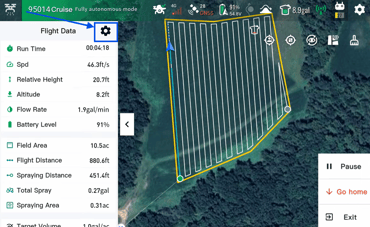
2. Select what you want to adjust:
Droplet size, Target Volume, Height, Speed.
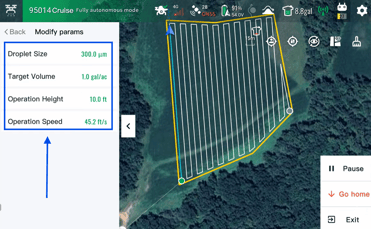
3. Once adjustments have been made and you select 'confirm', the drone will begin applying the adjustments immediately.
Note: You have to land your drone to make changes to the following: Route, Direction, Spacing, Margins, and Start point
Once the drone is landed, you can edit everything to do with the following:
-
Route
-
Direction
-
Spacing
-
Margins
-
Start point
(To start making these adjustments, it's recommended to do so when the drone is at a point closer to home, limiting the long ferry time, and making your operations more productive. Or during filling up or swapping batteries, since the drone is already landed.)
Steps Below:
1. Changing Route Direction
-
Select 'Pause' and then select ' Go home.'
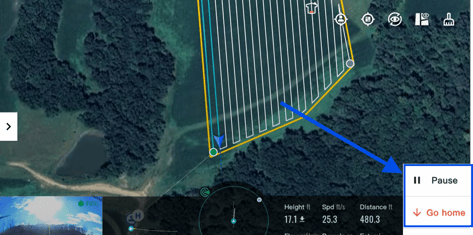
-
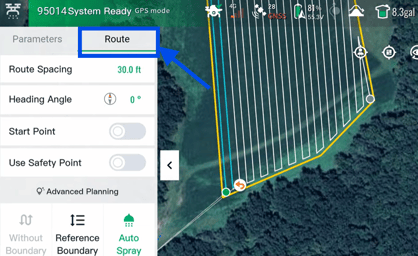
Once the drone is on the ground, go to 'Route.'
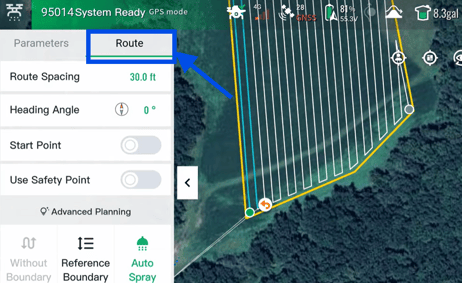
-
Select 'Reference Boundary.'
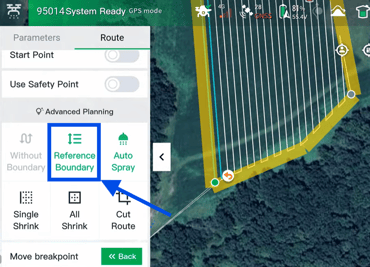
- Select which boundary you want the new direction of the operation to be.
(Nothing already sprayed will be overlapped. This is just adjusting the direction of what has not yet been sprayed in this field.)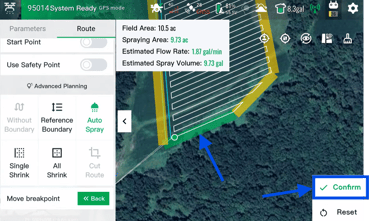
-
Select 'Confirm' when the direction of the operation is changed to your desire.
(The new flight direction has now been changed.)
2. Changing Route Spacing
-
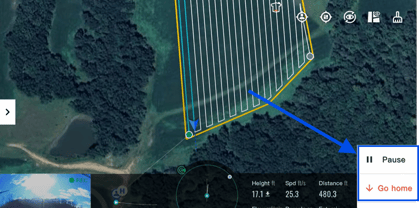
Select 'Pause' and then select ' Go home.'
-
Once the drone is on the ground, go to 'Route.'
-
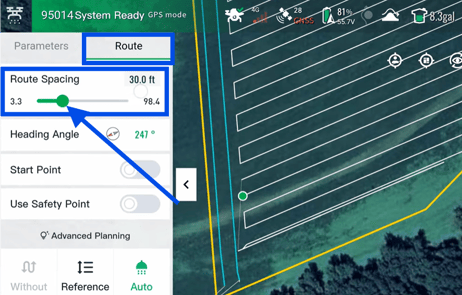
Under route, select 'Route Spacing' and slide the bar left or right to adjust the route spacing by feet.
-
Select 'Confirm' when the desired route spacing has been adjusted.
(The new flight route spacing has now been changed.)
3. Adjusting Margins Buffer
-
Select 'Pause' and then select ' Go home.'
-
Once the drone is on the ground, go to 'Route.'
-
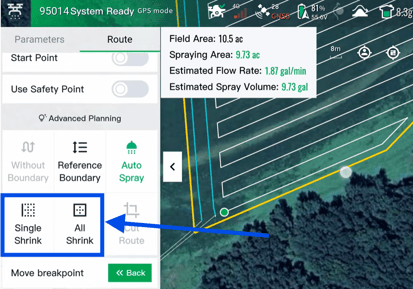
Decide if you need to add buffers for margins to all boundaries, or a single side of the boundary. If you need all boundaries, select 'All shrink'. If you need a single boundary, select 'Single Shrink'.
-
After selecting 'single shrink', select which boundary you want to shrink. If you selected 'all shrink', it applies to all sides, so no need to select a side.
- Now adjust the slide for how many feet of a buffer you want on the boundary. Select 'Confirm' when it is adjusted to your desired amount.
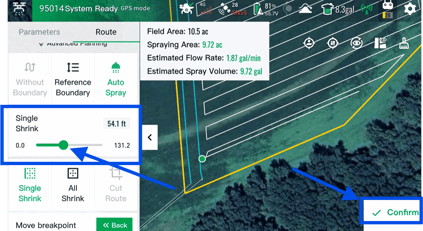
(The new margins buffer has now been changed.)
4. Changing the Start Point
- Select 'Pause' and then select ' Go home.'
-
Once the drone is on the ground, go to 'Route.'
-
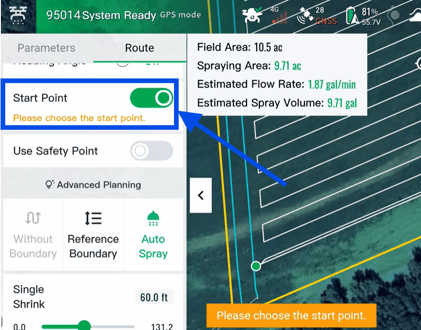
Toggle on 'Start Point'
-
Select where you want the new start point to be and then select 'Confirm'.
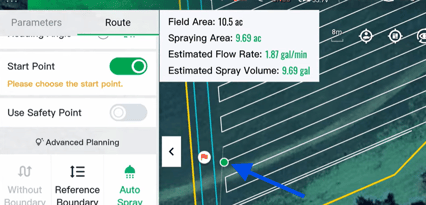
(The new starting point has now been changed.)
Stay Informed: Subscribe to the Agri Spray Drones Newsletter
How to Subscribe
Subscribing is easy and takes less than a minute:
-
Visit Our Website
Go to www.agrispraydrones.com -
Scroll to the Bottom of the Homepage
Look for the “Subscribe to Our Newsletter” section. -
Enter Your Email Address
Type in the email address where you'd like to receive updates. -
Click “Subscribe”
Once you submit, you’ll be added to our mailing list and will start receiving valuable updates straight to your inbox.
Don’t Miss Out
Join thousands of ag professionals who trust Agri Spray Drones for the latest in drone spraying and precision ag.
Subscribe today — and let us help you take your operation to the next level.