![ASD_icon_4c.png]](https://knowledgebase.agrispraydrones.com/hs-fs/hubfs/ASD_icon_4c.png?width=50&height=50&name=ASD_icon_4c.png)
Ensure you have conducted pre-flight checks prior to every flight before take-off.
Click Here for the article on Pre Flight checks for the J150/ J70
First Time Flying the J150 or J70
Quick Note: Ensure you have conducted pre flight checks prior to every flight before take off.
Click Here for article on Pre Flight checks for the J150/ J70
Key Steps:
1. Powering On the Remote and Drone.
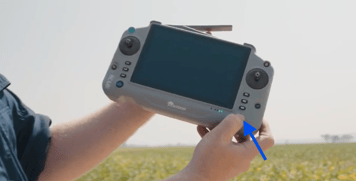
- Long Press>Light Flash>Release Button> Short Press.
-
Long press the remote power button until all lights turn on.
- Release the power button, followed by a short press to the power button.
2. Insert Drone Battery
-
Insert the drone battery, ensuring positive and negative terminals match.
-
Push the battery down fully into the terminal.
3. Setting Up the Smart Ag 60 App.
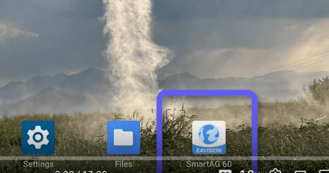
-
Open the Smart Ag 60 app on the remote.
-
Swipe up from the bottom of the screen to access all Android apps if needed.
4. Checking Drone Connection and Settings.
-
Ensure the drone is connected and GPS signal is initialized.
-
Check for any error messages on the screen.
- Select 'Auto'.
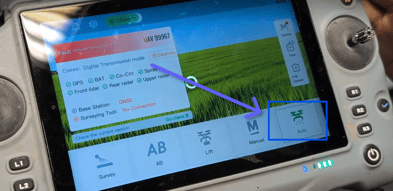
- Select the Setting icon in top right corner.
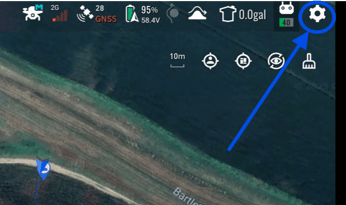
Continue to follow steps below.
5. Configuring Flight Settings.
-
Go to Flight settings.
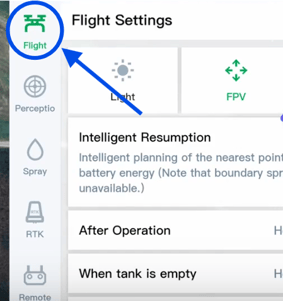
-
Check the manual RTH (Return to Home) settings.
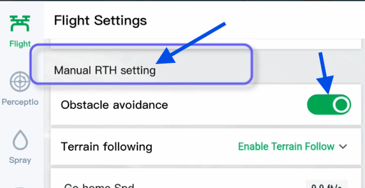
-
Enable train following and set preferred return to home speed and height.
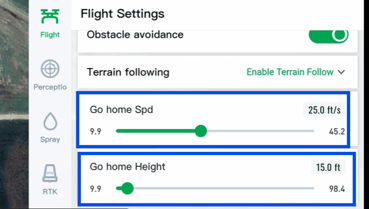
-
Ensure the drone is set to return home if it loses signal.
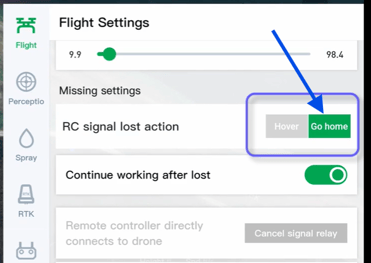
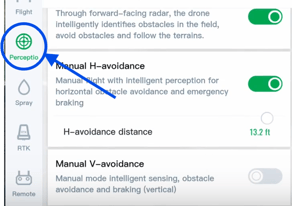
6. Adjusting Perception Settings.
- Select Perception settings.
-
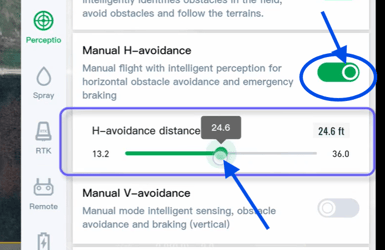
Turn on manual horizontal optical avoidance.
-
Set the distance for obstacle detection between 20 to 36 feet.
7. Spray Settings.
8. J150/ J70 Spreader Settings Overview:
Clear Tank Functionality
-
Access the clearance option to completely empty the tank.
-
Use the 'clear tank' button to initiate the emptying process.
-
You can stop the process at any time if needed.
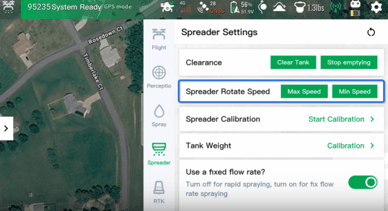
Adjust Spreader Rotation Speed
-
Locate the spreader rotation speed setting.
-
Quickly toggle between maximum and minimum disc speed as required.
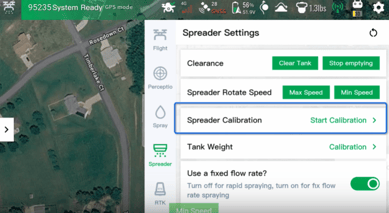
Calibrate Spreader
-
Use the spreader calibration feature to create templates for different materials.
-
Ensure that the calibration matches the material being spread.
Click Here for an article on performing a Spreader Calibration
Tank Weight Calibration
-
Perform tank weight calibration, which is standard for both spray and spreading tanks.
Click Here for an article on Performing a tank weight calibration.
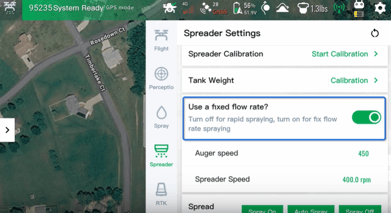
Set Fixed Flow Rate
-
Manually adjust the auger speed and disc speed using the fixed flow rate setting.
Control Spreader Operation
-
Use the spread control feature to manually turn the spreader on and off.
Monitor Spreader Readings
-
Check the following readings from the spreader:
-
Disk shaker speed
-
Voltage and current
-
Auger speed
-
Shortage speed
-
Voltage and current
-
Total spreading weight.
-
Configure Spray Box Empty Detection
-
Toggle the spray box empty detection on or off.
-
Choose to rely on:
-
Load cells only
-
MSD motor only
-
Both options.
-
9. Base Station/ RTK Settings Configuration for J70 and J150 Drones
Steps:
Access Device Settings
-
From the start screen, navigate to the right side of the screen.
-
Select the 'Device' option.
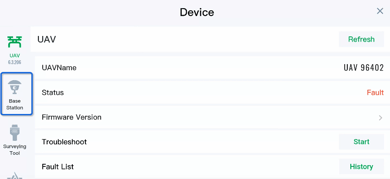
Select Base Station
-
On the left side, choose 'Base Station' to access RTK source options.
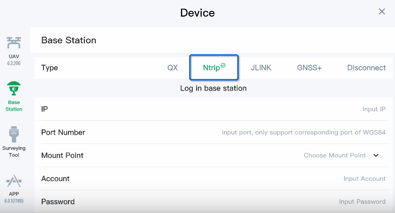
Configure Ntrip Settings
-
Select 'Ntrip' as your RTK source.
-
Input the following information:
-
IP address
-
Port number
-
Mount point
-
Account username
-
Account password (your Ntrip account credentials)
-
-
Ensure all fields are filled out correctly.
Connect to Ntrip
-
Scroll down to the bottom of the screen.
-
Click on 'Connect' to log into Ntrip.
Use J-Link for Base Station
-
If you wish to use your base station, select 'J-Link'.
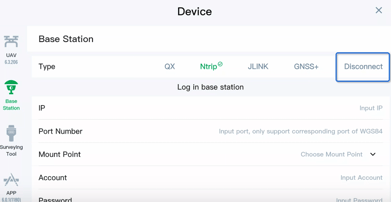
Disconnect from RTK (if necessary)
-
If you do not wish to use RTK, navigate to the right side and select 'Disconnect'.
Additional ways to access your RTK settings:
-
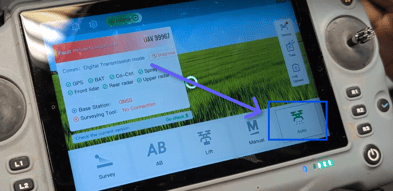
Select 'Auto' on your remote controller screen.
-
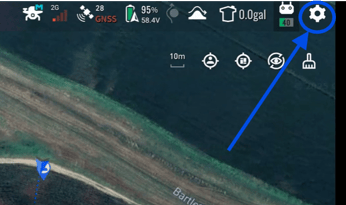
Then select 'settings' (gear Icon).
-
Now select 'RTK'.
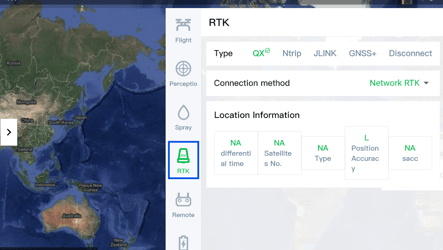
Quick Note: From here you can see your readouts of location.
-
If you do not wish to use RTK, navigate to the right side and select 'Disconnect'
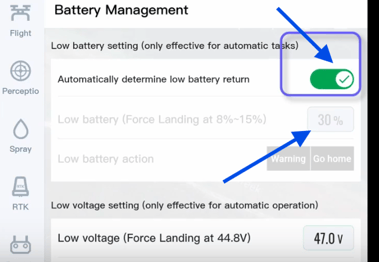
10. Battery Settings.
- Select Battery management on the left side.
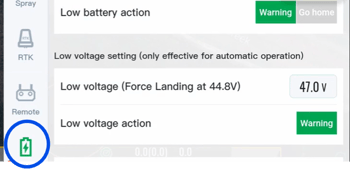
- Change the Low Battery (force Landing to 30%.
- Enable the 'Automatically determine low battery return'.
11. Preparing for Takeoff.
Ensure you have conducted pre flight checks prior to every flight before take off.
Click Here for article on Pre Flight checks for the J150/ J70
-
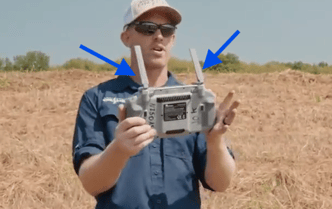
Pull up the antennas and ensure the area is clear of obstacles.
- Ensure you are at a safe distance from the drone.
12. Familiarizing with Controls.
-
Understand the left stick controls for altitude and direction drone is facing. (Left Stick Controls height, and turns the direction the drone faces.)
- Understand the right stick controls for going forward, backwards, and moving side to side.
-
Arm the drone by pushing both sticks down and in, then wait for the countdown. Propellers should start up after the countdown.
- To shut the drone Propellers off, push only the left stick straight down while drone is on the ground and hold until props fully shut off.
Quick Note: It is essential to get well familiarized with these controls to safely and confidently operate your drone.
13. Taking Off and Flying.
-
Ensure you are at a safe distance from the drone.
-
Push up on the left stick to take off.
-
Practice flying in different directions and getting comfortable with controls.
- Left stick controls for altitude and direction drone is facing. (Left Stick Controls height, and turns the direction the drone faces.)
- Right stick controls for going forward, backwards, and moving side to side.
14. Monitoring Flight Data.
-
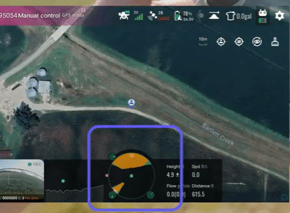
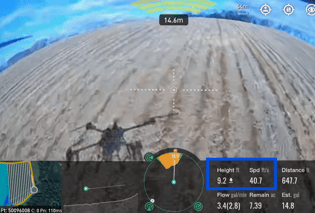
Keep an eye on the screen for camera feed and radar data.
-
Use radar to detect obstacles and monitor the distance from obstacles.
- View the Flight Height and Flight Speed to the right of the radar view at the bottom of the RC Screen.
15. Manual Landing Procedure.
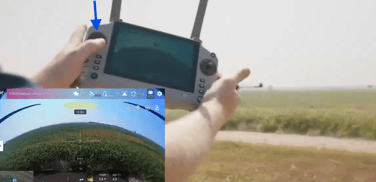
-
Push down on the left stick to descend.
- When getting closer to the ground the drown should slow down. (best practice is to not pull the left stick down fully, until the drone is on the ground.)
-
Avoid pressing the right stick while landing to prevent accidents. (best practice is to keep all fingers off of right stick while landing.)
- Once the drone lands keep pressing the left stick down until the propellers shut off.
-
Ensure the drone is powered off and safely stored after landing.
Cautionary Notes
-
Always operate the drone in an open area away from people and obstacles.
-
Be aware of battery life and perform practice flights with varying tank levels to understand performance.
Tips for Efficiency
-
Familiarize yourself with the drone controls before flying.
-
Practice in a large, open space to avoid obstacles.
-
Regularly check for software updates for the Smart Ag 60 app.
Stay Informed: Subscribe to the Agri Spray Drones Newsletter
How to Subscribe
Subscribing is easy and takes less than a minute:
-
Visit Our Website
Go to www.agrispraydrones.com -
Scroll to the Bottom of the Homepage
Look for the “Subscribe to Our Newsletter” section. -
Enter Your Email Address
Type in the email address where you'd like to receive updates. -
Click “Subscribe”
Once you submit, you’ll be added to our mailing list and will start receiving valuable updates straight to your inbox.
Don’t Miss Out
Join thousands of ag professionals who trust Agri Spray Drones for the latest in drone spraying and precision ag.
Subscribe today — and let us help you take your operation to the next level.