![ASD_icon_4c.png]](https://knowledgebase.agrispraydrones.com/hs-fs/hubfs/ASD_icon_4c.png?width=50&height=50&name=ASD_icon_4c.png)
J150 Uploading Logs: APP, UAV, FPV Video
J150 Flight Controller (CPU) Logs Upload Video Part 1.
(Connecting to the Drone for the Upload)
J150 Flight Controller (CPU) Logs Upload Video Part 2.
Key Steps for Uploading all Logs
Step 1: Access the Log Upload Section
-
Navigate to the main home screen of the application.
-
Locate and click on the Log Upload button.
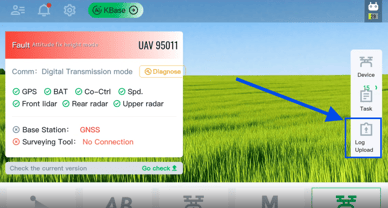
(Continue below for the steps for each of the uploads from this section)
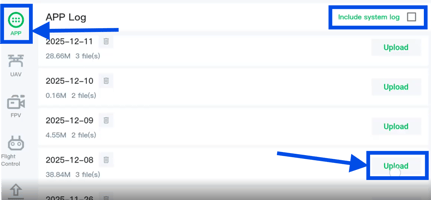
Step 2: Uploading APP Logs
- Select 'APP' on the RC screen.
- Optional: You can check the box that says 'Include System Log' if you wish, or you can leave it unchecked. The system logs are larger files that may take longer to upload.
- Locate the desired logs you wish to upload by date, and select 'Upload.'
- Then select 'confirm'. Once you get the indicator that says 'Upload successful,' the App logs have been uploaded.
Step 3: Uploading UAV Logs
-
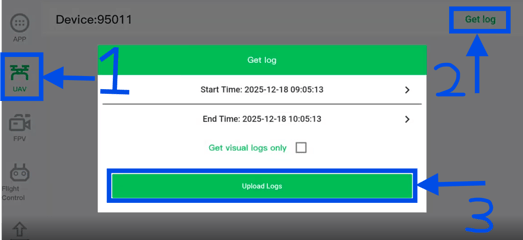
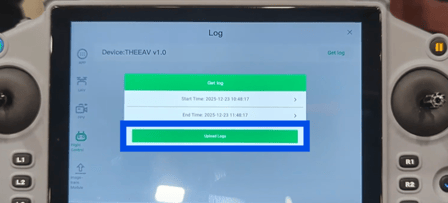
Select the UAV Log option.
- Select 'Get Log'.
-
Set the start date and time, and the end date and time for the logs you wish to upload. (Everything in between the selected dates and time will be uploaded)
Note: The maximum range for logs is approximately four hours.
(Which is why it is essential to keep track of time when you have a crash) - Once the correct time has been input, select 'Upload Logs.'
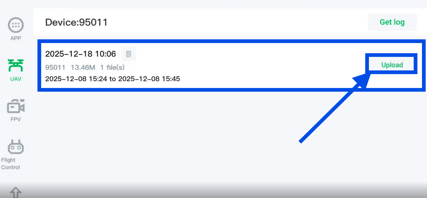
- Once Get log is complete, the log of the time you selected will now show; select 'Upload'.
- Then select 'confirm'. Once you get the indicator that says 'Upload successful,' the UAV logs have been uploaded.
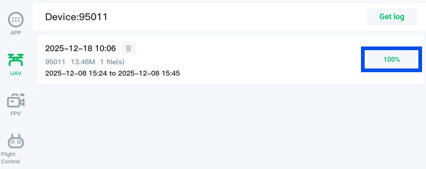
-
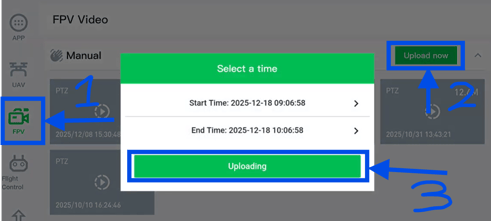
Select the FPV Log option.
-
Click on 'Upload Now' to start the upload process.
- Set the start date and time, and the end date and time for the logs you wish to upload. (Everything in between the selected dates and time will be uploaded)
- Select 'Uploading'. The file will be compressed, and then the uploading percentage will be shown.
- Once complete, you will get an indicator that says 'Upload Successfully.'
Step 5: Uploading Image Transmission Module Logs
-
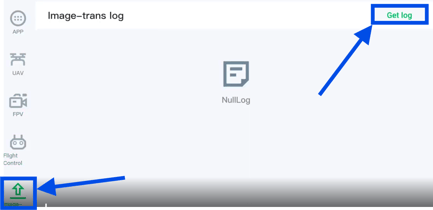
For the image transmission module, you can upload logs without a physical connection to the drone.
-
Select Image -Trans Log.
- Select 'Get Log.'
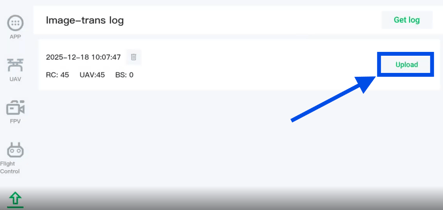
(This process may take a while) - Once log download is complete, select 'Upload' on the log just downloaded.
- Once complete, you will get an indicator that says 'Upload Successfully.'
Step 6: Uploading Flight Controller (CPU) Logs
(You will need to connect USB to RC and the drone)
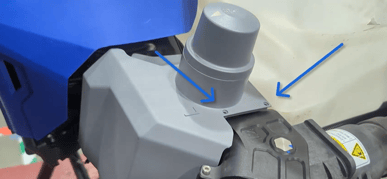
- Remove the Left RTK Antenna cover by removing two 2.5 mm hex screws.
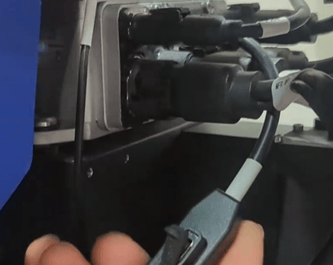
- Locate the cable coming off the CPU with the USB-C port

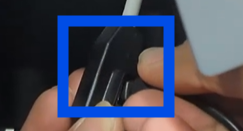
- Power on the Drone
- Plug one end of the USB cable into the remote controller (RC) and the other end into the USB port on the cable shown above.

-
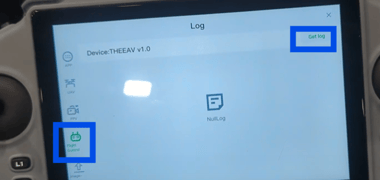
Select 'Flight Controller Log'.
- Select 'Get Log'.
- Set the start date and time, and the end date and time for the logs you wish to upload. (Everything in between the selected dates and time will be uploaded)
- Select 'Upload Logs'.
- Once the Log has been retrieved, select 'Download' on the desired log.
- The downloaded log will now show in your Log section of the Flight Controller section. Select 'Upload', and select confirm.
- Once complete, you will get an indicator that says 'Upload Successfully.'
Cautionary Notes
-
Double-check the date and time settings to ensure accurate log retrieval.
Tips for Efficiency
-
Regularly check for software updates to ensure compatibility with log uploads.
Stay Informed: Subscribe to the Agri Spray Drones Newsletter
How to Subscribe
Subscribing is easy and takes less than a minute:
-
Visit Our Website
Go to www.agrispraydrones.com -
Scroll to the Bottom of the Homepage
Look for the “Subscribe to Our Newsletter” section. -
Enter Your Email Address
Type in the email address where you'd like to receive updates. -
Click “Subscribe”
Once you submit, you’ll be added to our mailing list and will start receiving valuable updates straight to your inbox.
Don’t Miss Out
Join thousands of ag professionals who trust Agri Spray Drones for the latest in drone spraying and precision ag.
Subscribe today — and let us help you take your operation to the next level.