![ASD_icon_4c.png]](https://knowledgebase.agrispraydrones.com/hs-fs/hubfs/ASD_icon_4c.png?width=50&height=50&name=ASD_icon_4c.png)
Quick Note: The purpose of this article is to show you how to do this process, NOT WHICH FIRMWARE VERSIONS TO UPGRADE TO.
Also, we have noticed that performing one update at a time significantly lowers the time it takes for updates to complete.
Ensure all steps in this article are followed for setting up your J70.
Before starting on updates, you need to follow these steps.
1. Unpack the drone, remote controller, and batteries.
2. Insert the battery into the drone.
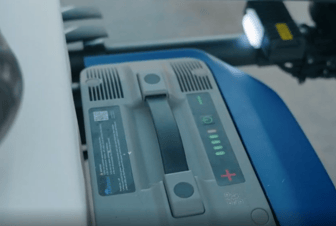
3. Power on RC. (If RC is in a different language, Click here for how to change the Keyboard to English).
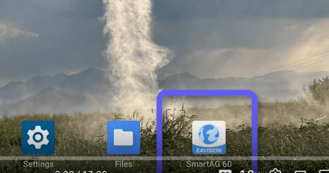
4. Open the Smart Ag 60 App on your RC.
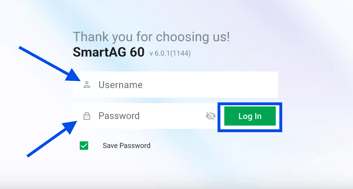
5. Enter your username and password to log in.
6. Power on the Drone.
7. Verify that the drone is connected by checking the top left corner of the app for a solid green indicator and the drone number.
How to Update the App Firmware.
1. Navigate to the RC screen and select 'Device'.
2. Scroll down and select 'APP'.
3. Select 'Upgrade'.
4. Click 'Update Now' to upgrade the app version and then click 'Update'.
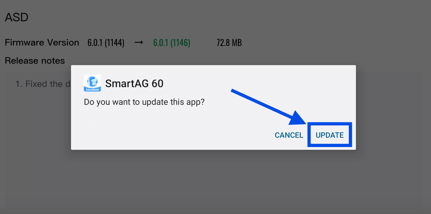
5. After the app updates, click 'Open' to relaunch the app and confirm you are logged back in.
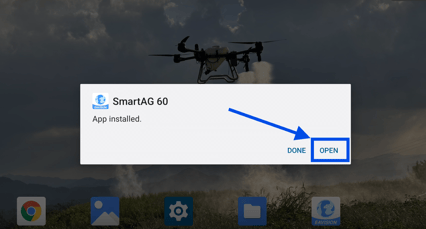
Updating the APP is now COMPLETE.
How to Update the Drone Firmware.
1. Go to 'Device'.
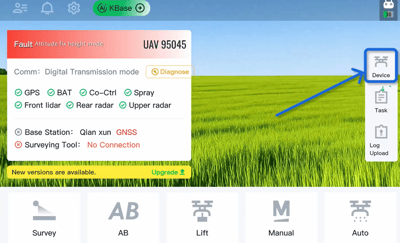
2. Under UAV, Select 'Firmware Versions'.
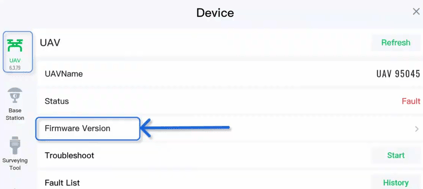
3. Click on the UAV firmware version at the top and select 'Upgrade'.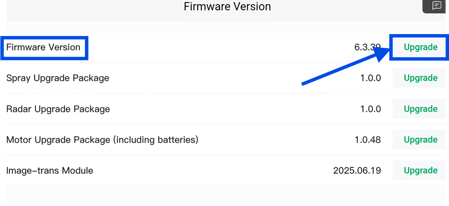
4. Look for the top, and most recent version, and select 'Upgrade'.
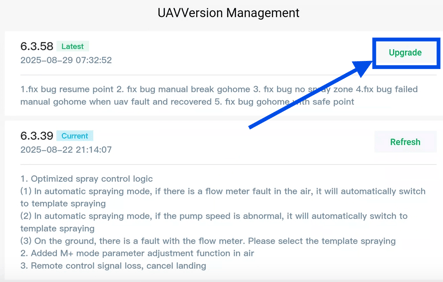
5. After the firmware update is complete, shut down the drone (only the external battery).
6. Wait a few seconds and power the drone back on.
Updating the Drone Firmware is now COMPLETE.
How to Update Battery Firmware.
1. Go back to 'Device.'
2. Select 'Firmware Versions'.
3. Choose 'Motor Upgrade Package' and click 'Upgrade'.
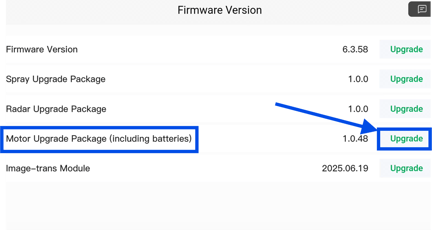
4. The Battery on the drone should start flashing from left to right as the update is happening.
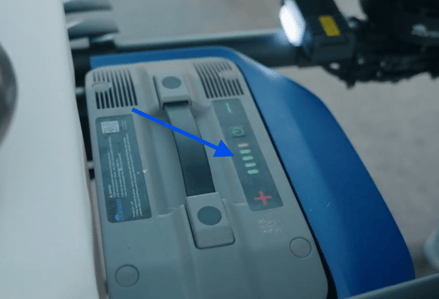
5. After the update is complete, the battery will shut off.
6. Power battery back on and confirm update.
Ensure you repeat this update for ALL BATTERIES
Updating the Batteries Firmware is now COMPLETE.
How to Update the CPU Firmware
1. Navigate to 'Device'.
2. Scroll down to the bottom and select 'CPU'.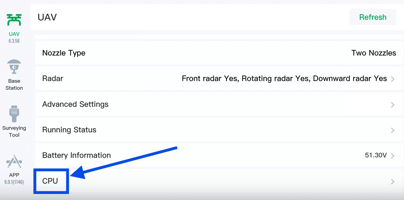
3. Click 'Upgrade' to update the CPU firmware to the latest version.
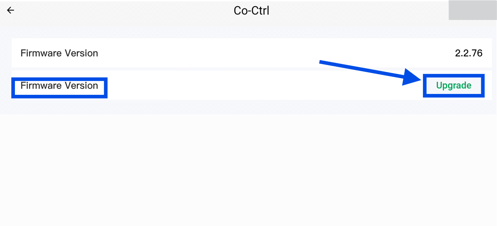
4. After the CPU firmware update is complete, perform a full power down of the drone. To do this First turn off the battery.
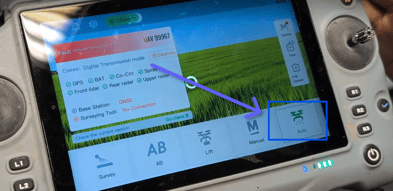
5. Go back to the main screen, select 'Auto'.
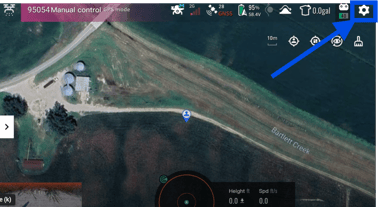
6. Select the 'settings icon' in the top right corner of the screen.
7. Select the 'Turn Off' button on the RC screen.
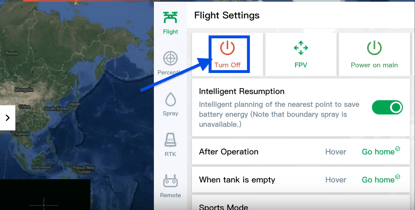
8. Once you select the Turn off button, a countdown will begin until the drone shuts down.
9. Once the drone is completely powered down, turn it back on to finalize the setup.
Updating the CPU Firmware is now COMPLETE.
Stay Informed: Subscribe to the Agri Spray Drones Newsletter
How to Subscribe
Subscribing is easy and takes less than a minute:
-
Visit Our Website
Go to www.agrispraydrones.com -
Scroll to the Bottom of the Homepage
Look for the “Subscribe to Our Newsletter” section. -
Enter Your Email Address
Type in the email address where you'd like to receive updates. -
Click “Subscribe”
Once you submit, you’ll be added to our mailing list and will start receiving valuable updates straight to your inbox.
Don’t Miss Out
Join thousands of ag professionals who trust Agri Spray Drones for the latest in drone spraying and precision ag.
Subscribe today — and let us help you take your operation to the next level.