![ASD_icon_4c.png]](https://knowledgebase.agrispraydrones.com/hs-fs/hubfs/ASD_icon_4c.png?width=50&height=50&name=ASD_icon_4c.png)
Overview
As Applied On AGMS Platform - Watch Video
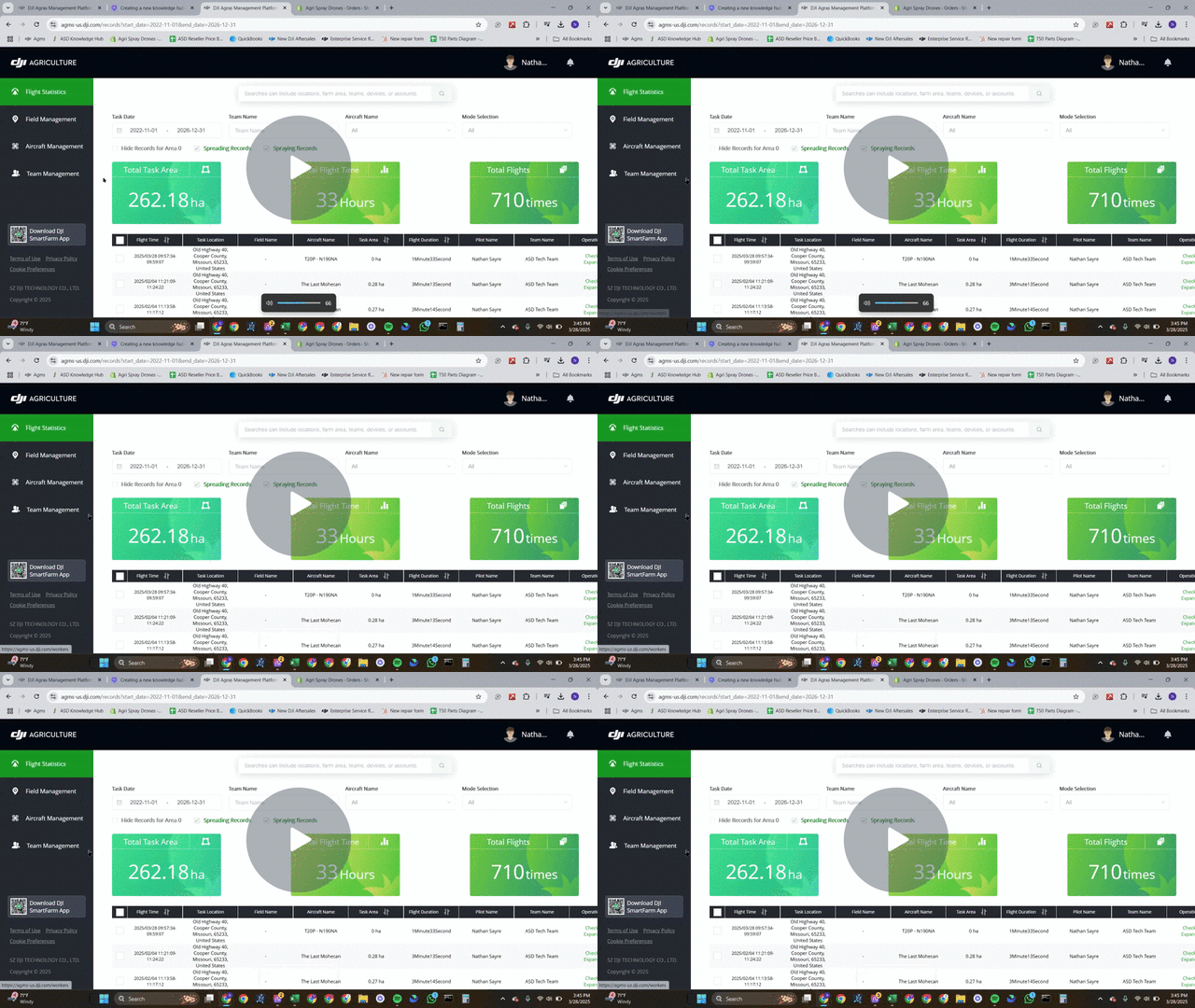
This pull request introduces the functionality to apply map layers on the AGMS platform. Key features include:
-
Ability to view flight routes with customizable map layers.
-
Users can make an as-applied map and show flight statistics for a field.
-
Downloadable images of flight data for offline analysis.
1. Accessing the AGMS Platform 0:00
-
Open the AGMS platform.
-
Log in using your username and password (the same as used for the drone).
-
The link to the platform will be provided in the Knowledge Hub document.
2. Navigating to Flight Statistics 0:24
-
Once logged in, navigate to the flight statistics page.
-
You can sort the flights and change the number of flights displayed per page (recommended: 50 per page).
3. Viewing a Flight Route 0:44
-
Select a flight from the list.
-
Scroll down and click on 'view flight route'.
-
You can toggle map layers to show or hide flight paths.
4. Changing Map Settings 1:07
-
Access the map settings to change the type of map displayed.
-
Satellite view is recommended for most users.
5. Selecting Multiple Flights 1:13
-
Use the select all option at the top to select all flights on the current page.
-
Navigate to the next page to select more flights, but note that you can only view 100 flights at a time.
6. Viewing Older Flights 1:48
-
Scroll through your maps to find older flights.
-
Be aware that older flights may not display correctly due to updates or the type of drone used.
7. Downloading Flight Images 2:25
-
-
If needed, you can generate and download an image of the flight data.
-
Click the download option to save the image, which will include flight statistics.
-